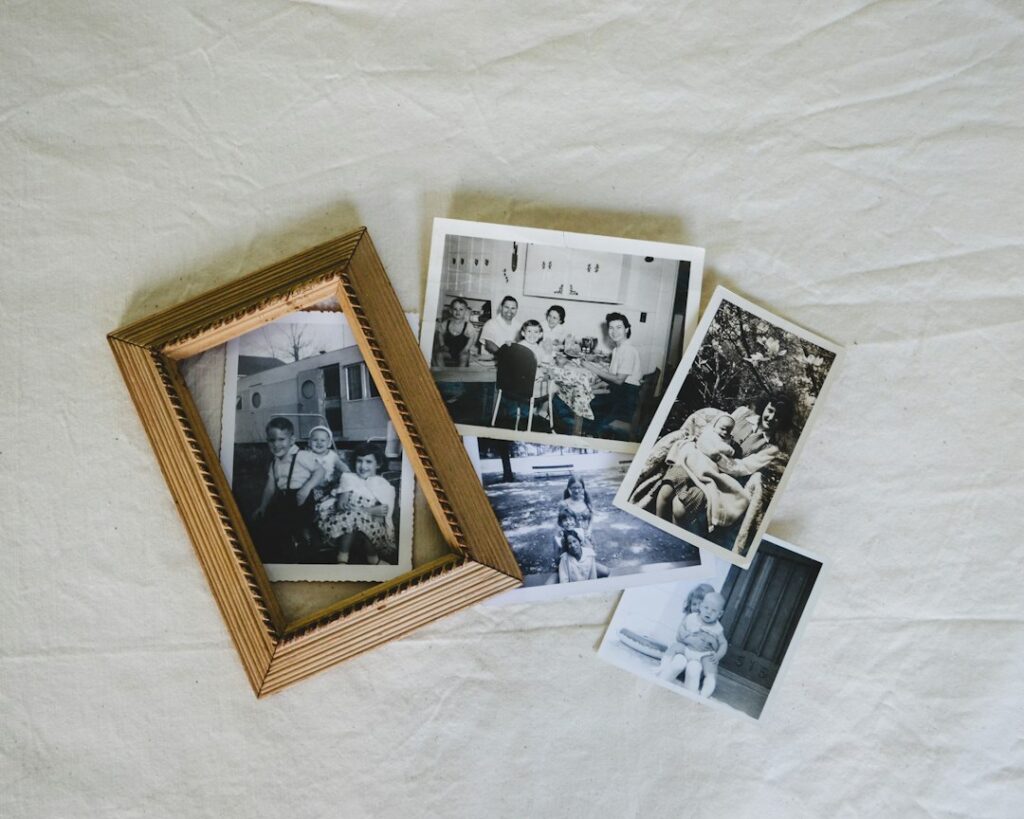
AI editing can help you experiment with a dark photo, distracting background, or faded scan. Start with one picture and one change. You do not need a new camera or a collection of paid apps to find out whether an edit improves a memory you care about.
This workflow is for personal photographs. When a picture is being used as evidence, a historical record, or an accurate account of an event, keep the unaltered original and make any changes clear.
10 MINUTES · GUIDED PRACTICE
Choose one modest edit and judge the result against the original instead of trusting the word “enhanced.”
Choose one photo and keep the original
Pick a picture with a specific problem you can describe: “The faces are too dark,” “The horizon is tilted,” or “The color looks different from the original print.” Work on a separate version so you can compare the result and start again.
Check how your editor saves changes before using it. For example, Google Photos’ editing guide explains that “Save as copy” creates a separate edited photo while leaving the original unchanged. Available tools and save options vary by device and edit.
A simple filename such as family-picnic-original and family-picnic-lightened can help you remember which version you are looking at later.
Try a small correction first
Before you start: allow about 10 minutes on a phone, tablet or computer. The text-only rehearsal produces a decision and a checklist; it does not edit a photo. You can read the example without an account, or use an AI text chat. No upload or paid feature is needed for the rehearsal.
Practise without uploading a photo
The button copies the full fictional comparison and instructions. Paste them into a fresh AI chat, or work through the report yourself. If copying is unavailable, select the shaded text. Help copying and pasting.
Review this fictional photo-editing report using only the text supplied. State the requested change, the reported unwanted changes, what still needs a direct comparison with the original, and the next action. Do not generate an image or claim to have inspected one.
Fictional report: The original picnic photo shows three people and a striped tablecloth. The requested change was brighter faces only. The edited version is brighter, but one person’s glasses have disappeared and a new cup has appeared. No actual images are supplied.
Decide whether the described version should be kept as a faithful correction. Do not assume that other faces, objects, words or details remained unchanged merely because the report does not mention them. Do not claim a new edit was made or saved.
Then try one real edit, if you choose
Use a separate copy of a photo you are comfortable editing. Check the editor’s costs and how it handles uploads before using a feature. You can finish the rehearsal without buying anything or supplying a real image.
Start with the editor you already have. Compare its suggested enhancement with a modest manual adjustment to brightness or color. You may prefer the simpler change.
Where your editor accepts written instructions, try:
Gently brighten the faces in this photo while keeping all people, facial features, glasses, clothing and background unchanged. Keep the colors natural. Do not add or remove objects or invent details.
These instructions express your intention; they do not guarantee that the tool will follow it. Compare the result closely with the original before keeping it.
If you are using a text chatbot without an image editor, ask it to explain editing terms or suggest a checklist. A description of an edit is not an edited image.
Inspect the details that matter to you
Look at the picture at its normal viewing size, then zoom in. Check:
- Do the people still look like themselves?
- Have eyes, teeth, hands, jewelry, or clothing details changed?
- Are signs, dates, and other visible words still accurate?
- Do edges look strange around hair or glasses?
- Has something appeared or disappeared in the background?
Keep an edit because it improves the photograph, not because the software labels it “enhanced.” A slightly soft but faithful face may matter more to you than an artificially sharp one.
Check your result
Would you keep that version as a faithful correction of the original? Name what you would check or change.
Reveal the check: the edit changed more than brightness
Missing glasses and a new cup exceed the requested correction. Compare the whole frame, especially faces, accessories, hands, text, and background objects.
Reject the version or try a simpler adjustment on a separate copy. Keep the original available.
How do I know the saved version is the right one?
Reopen the actual exported file and inspect its details and crop. The editor preview may not be the file you end up sharing.
For a substantially altered creative version, use an honest caption. An invented or reconstructed detail is not historical evidence.
Compare with this review decision
Illustrative review of the fictional report. No image was inspected or edited for this example.
- Brightness: the report says the version is brighter. That alone does not establish a faithful correction.
- Glasses: a person’s glasses disappeared. This exceeds the requested brightness change.
- Cup: a new object appeared. This also exceeds the request.
- Other details: the report does not establish whether the people, tablecloth, text or remaining scene details are unchanged. They still need comparison with an actual original.
Decision: reject this version as a faithful correction. For a real photo, return to a separate copy of the original and try a smaller adjustment, then compare again. No new edit has been made in this rehearsal.
If the chatbot approves it because it is brighter: ask, “Reassess against the requested change. Missing glasses and an added cup are unwanted changes. Separate reported problems from details that have not been checked.”
Keep a reusable photo-editing checklist
Copy this checklist into your own notes. For the rehearsal, record that no images were supplied. For a real edit, fill the checks from the original and saved result. This page does not save completed checklists.
Photo and intended use: [which picture and who will see it]
Original file: [filename and private location; keep unchanged / not supplied for the rehearsal]
Edited copy: [separate filename and location / no image supplied]
One requested change: [the specific adjustment]
Must stay unchanged: [people, faces, accessories, clothing, text and scene details]
Upload and sharing choice: [what is agreed and acceptable for this image; not yet checked if unknown]
Comparison: [check the whole frame and zoomed details; record unwanted changes or not checked]
Saved-file check: [reopened the actual edited file and checked its crop and details, with date / not tested]
Decision: [keep / retry from the original / reject, with reason]
Caption and review: [describe meaningful alterations, check names and dates, and record permission before sharing]
Finish the family-memory project: keep the original, the version you chose and an accurate caption with your memory sheet. Reopen the saved photo before using it in the book. If an edit changes or reconstructs details, label that clearly instead of treating the new details as family-history evidence.
You have finished this exercise when: For the rehearsal, you can identify the missing glasses and added cup, explain why the edit should be rejected, and list details still needing comparison. For a real photo, also keep the original and inspect the saved edited file.
Get help with a stuck step · Choose another practice lesson
Project complete? Save your checked result somewhere you can find it again, and note anything you still need to confirm.
See all three steps: Preserve a family memory.
Practice updated October 13, 2026: added copyable rehearsal and editing instructions, a checked illustrative decision, and a reusable photo checklist. Prepared with AI assistance. This remains a text-only teaching example, not a new image-editing product test.
Separate tidying from changing the memory
There is a difference between adjusting brightness and generating a new part of a scene. Google’s guide describes an AI framing feature that can fill or extend a background. That new area was not necessarily captured by the camera.
Before removing an object or expanding a picture, ask what you want the image to represent. Is it a creative version for a greeting card, or a record of how the room and people looked that day?
For a family-history album, keep the original beside any substantially altered version. Use a plain caption such as “AI-edited version; background changed.” Do not present a generated face, reconstructed word, or colorized detail as confirmed history.
Decide what you are comfortable uploading
Before sending a personal photograph to an unfamiliar service, read its current information about storage, sharing, deletion, and use of uploaded images. Check whether a supposedly local editor sends that particular feature’s images to a server.
Consider everyone shown in the picture. Ask before uploading someone else’s private image, and avoid including personal documents, sensitive surroundings, or details you would not want the service to retain. You can also choose to make ordinary adjustments in an editor whose handling of the file you understand.
If you are comparing paid tools, use our small test before subscribing. One successful demonstration does not establish how a service will handle your entire photo collection.
Check the saved file before sharing
Save the edited version, reopen that actual file, and inspect it again. Confirm that you saved the version you intended, that the crop is right, and that the picture is suitable for its destination.
A photo that looks pleasant on a phone may reveal problems when printed. Try one print before ordering a whole album. Keep the original available, add a clear caption when the image has been substantially changed, and share the version that best serves the memory.
Featured photo: Debby Hudson on Unsplash. Illustrative photo.