
START HERE

Start with one
small, useful task.

New to AI? Read the example, watch the walkthrough, or try the five-minute exercise. Learn to ask, check and improve one simple answer. No technical experience is needed.

Already comfortable with an AI chat? Choose a task on Learn AI.

A golden stepping path across a teal landscape toward a distant rocket launchpad.
Original illustration made with AI.

YOUR FIRST FIVE MINUTES

Ask. Check. Refine.

A few notes.
A useful checklist.

See the same task take shape, one step at a time.

Illustrative preview using the fictional notes from the exercise below.

Try the five-minute exercise
THE TASK: A TRAIN-TRIP CHECKLIST

01 / ASK

Give AI something clear to work with.

“Turn these fictional notes into a short checklist. Keep every detail. Do not invent missing information.”

YOUR FICTIONAL NOTES

Saturday, 9:30 a.m.

Train departure

  • Pack a raincoat.
  • Charge my phone.
  • Bring my train ticket.
  • I have not chosen a return train.

02 / CHECK

Your experience does the checking.

Compare the draft with your notes. Look for the time, every item, and anything still undecided.

ILLUSTRATIVE DRAFT

Departure: Saturday at 9:30 a.m.

  • Pack a raincoat.
  • Charge the phone.
  • Bring the train ticket.

Still to decide: choose a return train.

Keep this open. A return train has not been chosen. The draft should leave that decision with you.

03 / REFINE

Make the result easier to use.

“Make the checklist easier to scan without changing any facts.”

ILLUSTRATIVE REVISED CHECKLIST

Saturday, 9:30 a.m.

Train departure

Before leaving

  • Pack a raincoat.
  • Charge the phone.
  • Bring the train ticket.

Still to decide

Choose a return train.

A clearer checklist. The same facts.

Fictional notes. No personal details needed.

Your first useful AI task

What you’ll finish
A short travel checklist, checked against the original notes and improved once.

Time: about 5 minutes, plus any first-time setup. Level: complete beginner.

What you need: a phone, tablet or computer with internet access. Use an AI text chat, or follow the example on this page without an account.

Keep it simple: use the fictional notes below. No personal details, file uploads or paid features are needed for this exercise.

A prompt is the request you type or paste into an AI chat.

Before you begin: choose your starting point

I’m brand new

ChatGPT’s website is one starting option. Use the ordinary text message box for this exercise. You can also complete the checklist on this page without opening another service.

  1. Go to step 1 and copy the complete fictional prompt. Use Open ChatGPT beside it to open another tab; keep this guide open.
  2. Find the message box. In the signed-out desktop view checked on October 21, it showed “Ask ChatGPT”; its accessibility label was “Chat with ChatGPT.”
  3. Read the service’s terms and privacy information before deciding to use it. If access requires an account, use one you are permitted to use or return to the example here.
  4. Paste the whole fictional prompt from step 1. Check that Saturday at 9:30 a.m. and the undecided return train are both present.
  5. If you decide to continue, choose the upward-arrow Send message button on the right of the box. Then return here and compare the answer with the original notes.

Open the message-box example (full size, new tab)

What to notice: The text box accepts the prompt. The upward arrow sends it and is disabled while the box is empty.

Screen and text route checked October 21, 2026: desktop Chrome, signed out. The complete fictional prompt and one follow-up were submitted; both answers kept the supplied facts. The manual-copy route transferred all 394 characters. See the five screens and written walkthrough. Read the trial conditions and limits. Labels, access and placement can differ on other devices or change later.

Access and limits: OpenAI’s signed-out access guidance (opens in a new tab) says signed-out access depends on supported location and network conditions, with one conversation at a time and session-only history. Access may require signing in. Do not assume a signed-out conversation will remain available after starting another. The Free-tier FAQ (opens in a new tab) explains that some tools have separate limits; a free account and a signed-out session are different access conditions. This exercise uses text only, with no installation, attachment or paid feature. Sources checked October 24, 2026; the recorded product trial remains dated October 21.

If your screen is different: use the control’s label, rather than its position in this picture. Do not turn on a microphone or attach a file to follow this lesson. If you cannot find an available text chat, finish with our on-page example.

I already use an AI tool

Open a new text conversation in the AI tool you already use, then follow step 1 below. Keep these fictional details for your first attempt.

The exercise does not require connecting your inbox, attaching a file or granting microphone access. For workplace material later, use a tool approved by your organization.

See the first chat, in five screens

Follow a real fictional-practice attempt from the message box to a checked revision. Move at your own pace; nothing plays automatically. The written steps below remain available.

Watch the 84-second captioned walkthrough
Silent video with on-screen captions and reading pauses. It uses five actual screen captures from the October 21, 2026 fictional exercise; it is not a continuous screen recording. Pause whenever you need more time.

Read the complete written walkthrough, prompt and checked answers. Open the MP4 in a new tab (about 0.5 MB).

Observed October 21, 2026: signed-out desktop Chrome, operated by an AI assistant. These are actual screen captures, cropped to the useful controls and results. They do not show phone layouts or independent reader testing.

All five screens are available below.

1. Find the message box

Look for Ask ChatGPT. Its accessible label in this session was Chat with ChatGPT. Use the long text box; the plus and microphone are unnecessary for this exercise.
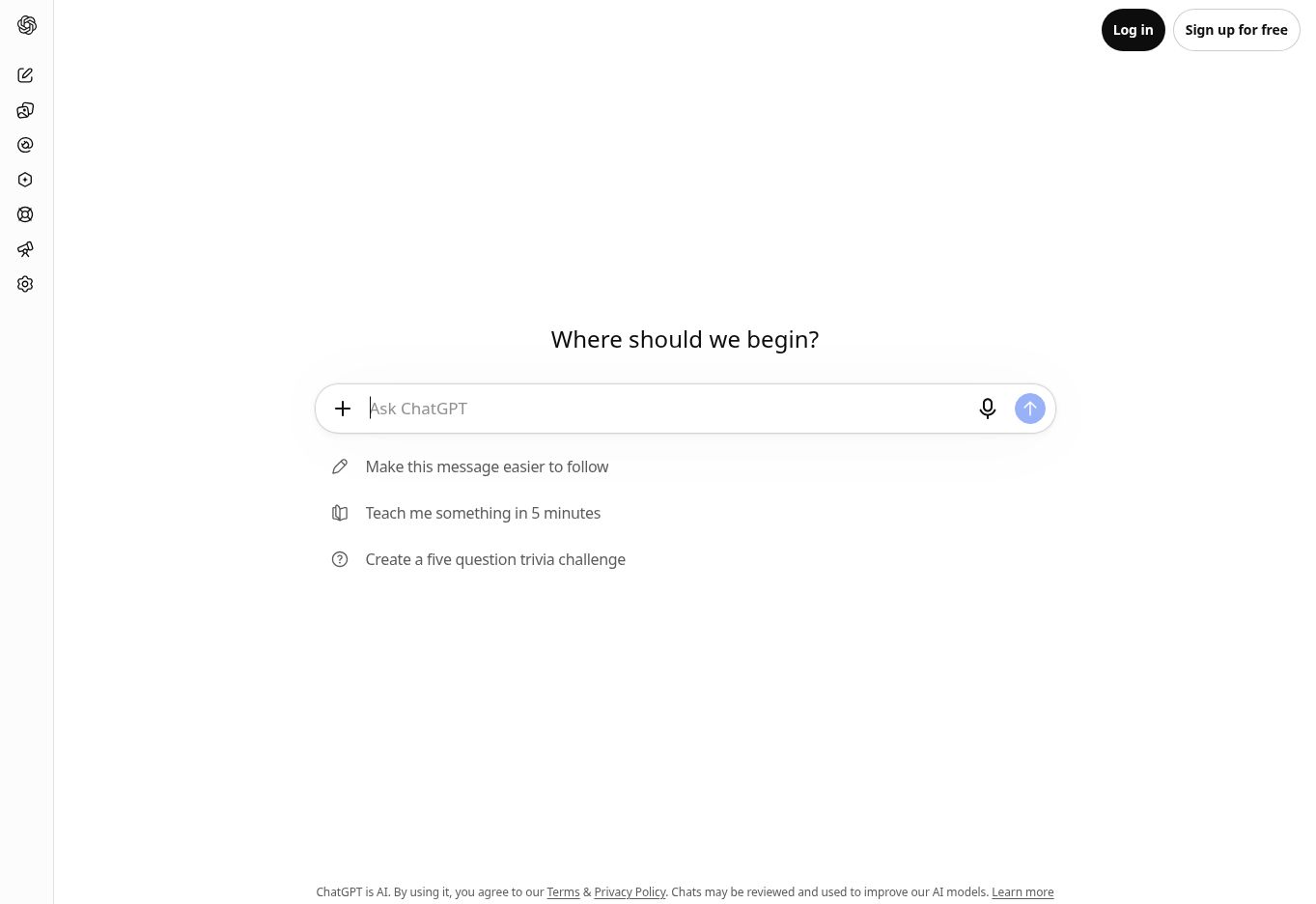
Signed-out ChatGPT desktop screen with the Ask ChatGPT text box and an upward-arrow Send message control.
What to notice: The text box accepts the prompt. The upward arrow sends it and is disabled while the box is empty. Open the full-size screen (new tab).

2. Check the full prompt, then send

Paste the complete fictional prompt from step 1 below. Check for Saturday at 9:30 a.m. and the undecided return train. If the text runs beyond the box, scroll inside the box to inspect it. Then choose Send message, the upward arrow.
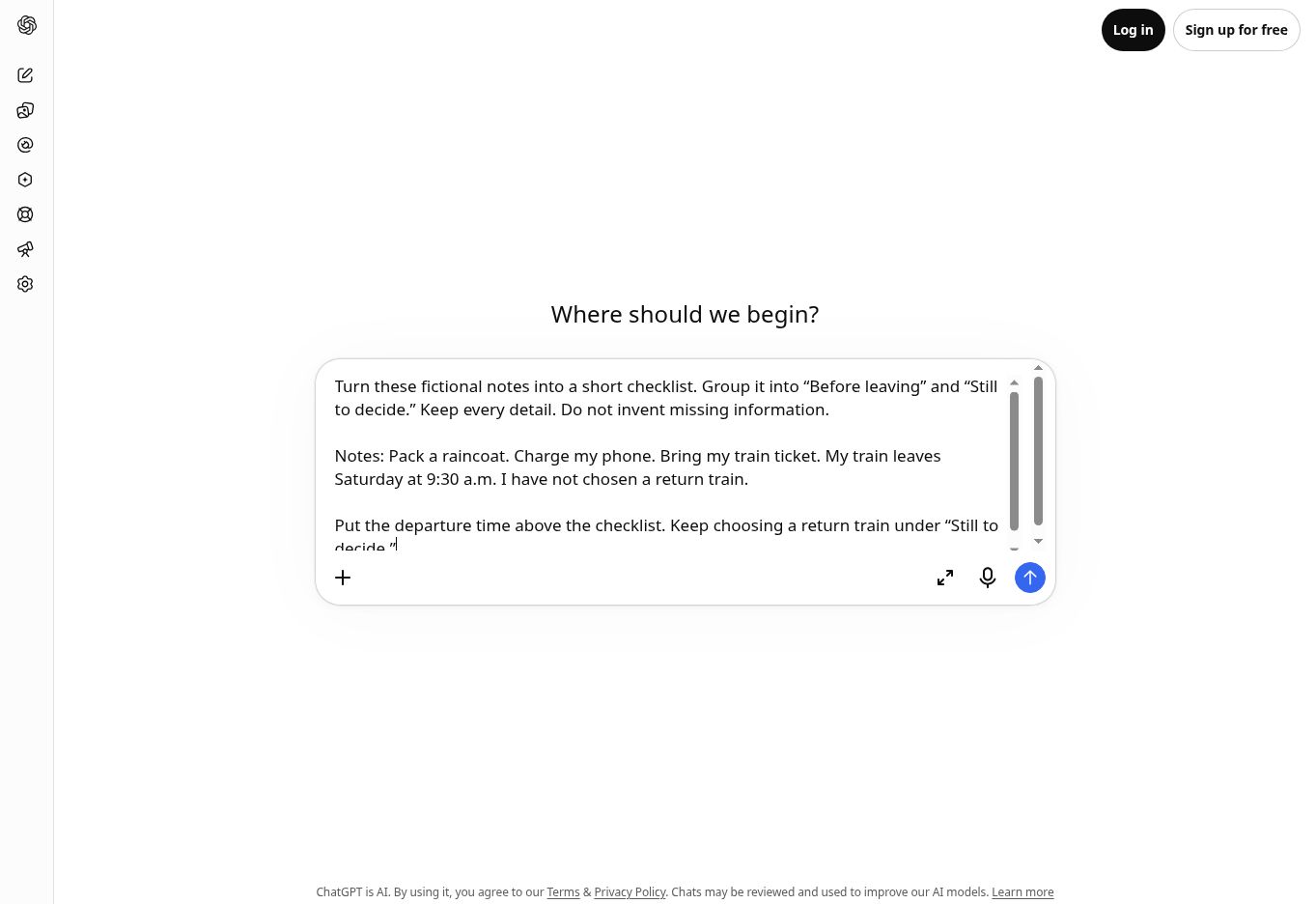
The supplied fictional travel prompt appears in ChatGPT's text box; the upward-arrow Send message button is at the lower right.
What to notice: The arrow at the lower right sends the text. Scroll within a long draft to check its final sentence before sending. Open the full-size screen (new tab).

3. Compare the answer with the notes

This observed answer kept the departure time, raincoat, phone and ticket. It placed Choose a return train under Still to decide. It supplied no station, journey length or return booking.
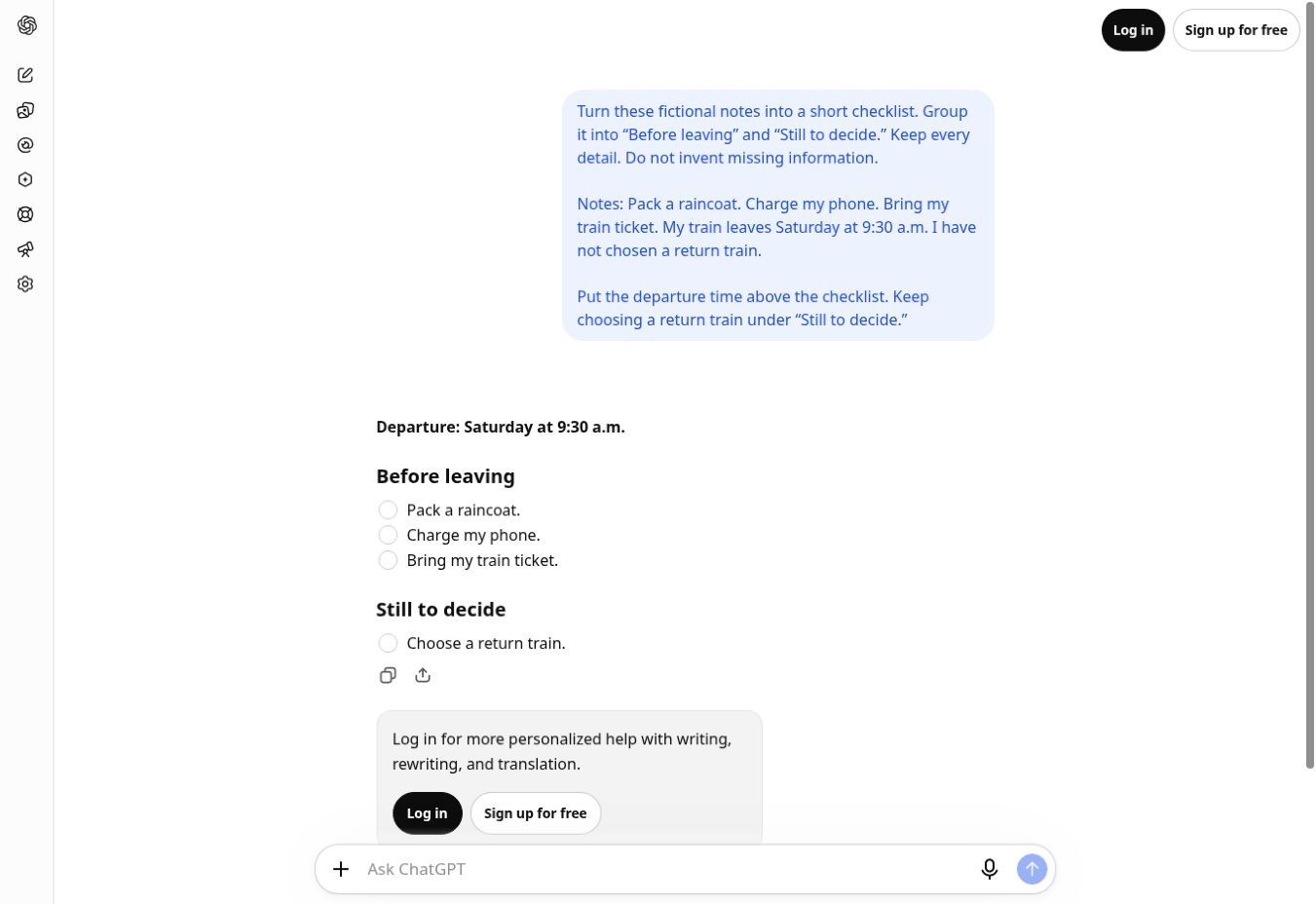
Observed ChatGPT answer keeps Saturday at 9:30 a.m., lists raincoat, phone and train ticket, and leaves the return train undecided.
What to notice: Check the departure line, all three packing items and the separate unresolved return journey. Attractive formatting is not proof of accuracy. Open the full-size screen (new tab).

4. Ask for one improvement

Stay in the same conversation. Enter: Make the checklist easier to scan without changing any facts. Choose Send message again.
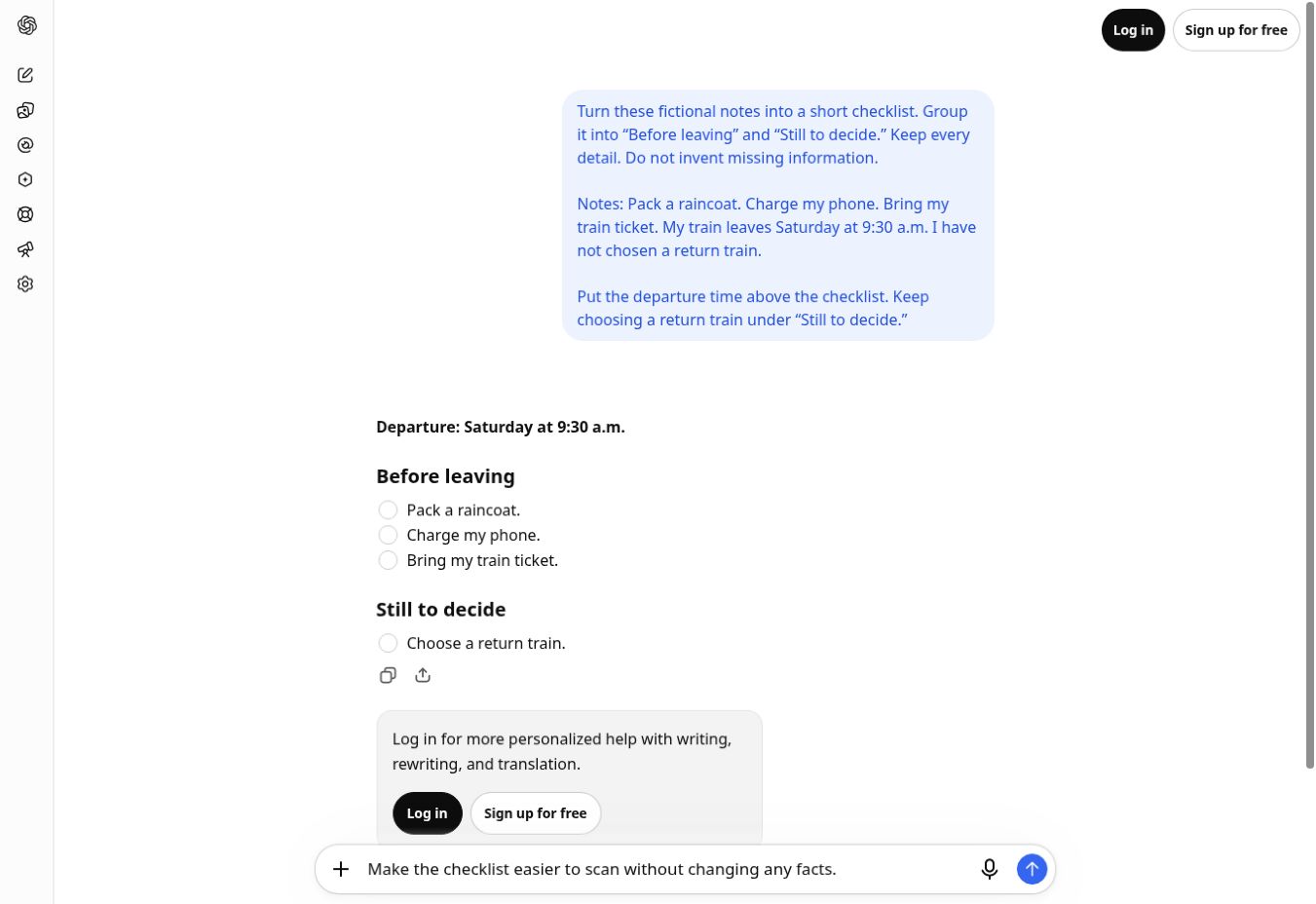
The message box contains: Make the checklist easier to scan without changing any facts.
What to notice: The follow-up belongs in the message box below the answer. Starting a new chat would lose the earlier context. Open the full-size screen (new tab).

5. Check the revised answer

The revised answer changed the presentation and kept the same supplied facts. The return train remained a decision to make. Finish when you have compared both answers with the original notes. Your wording and layout may differ.
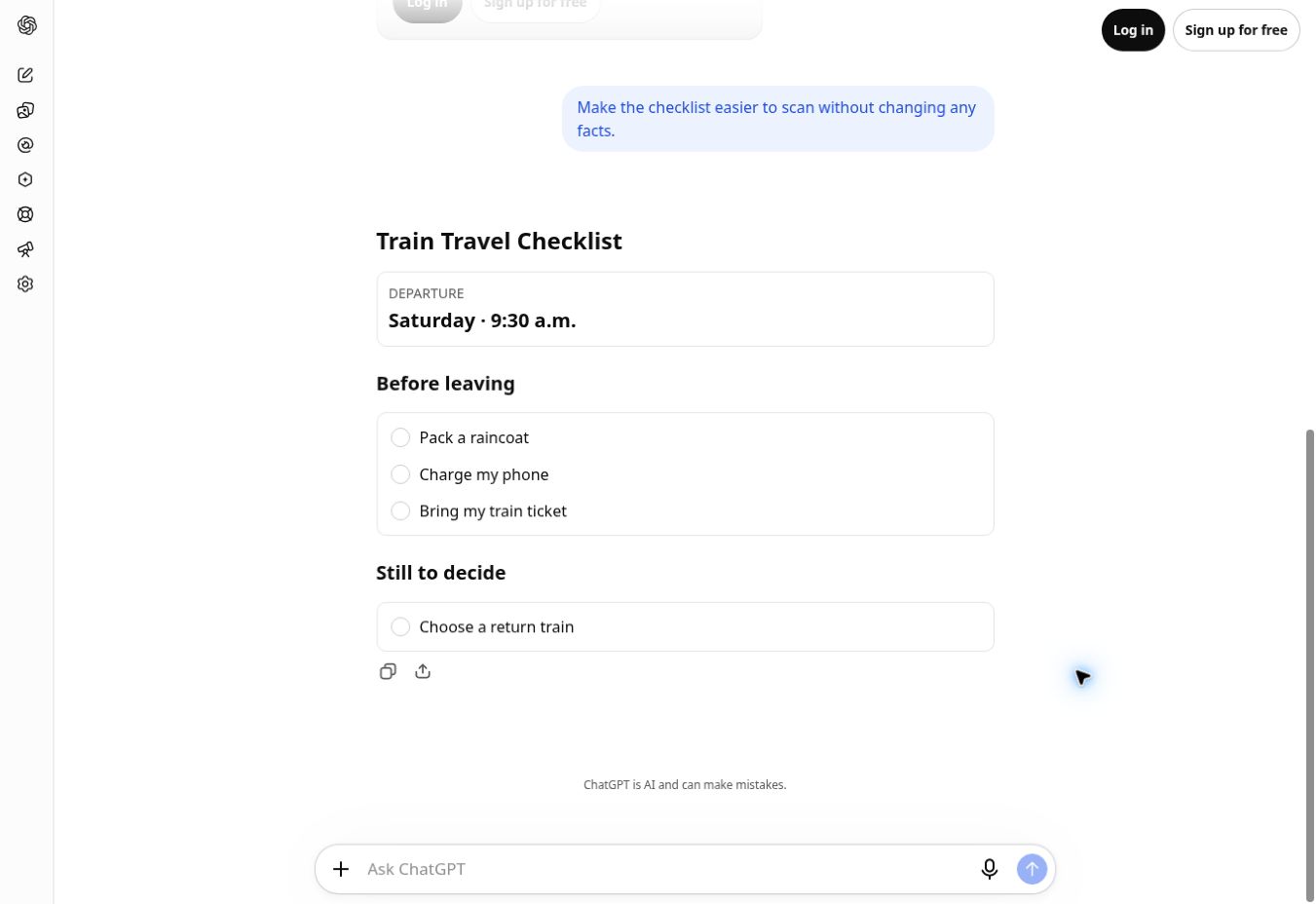
The revised Train Travel Checklist keeps Saturday at 9:30 a.m., the three packing tasks, and Choose a return train under Still to decide.
What to notice: The departure remains Saturday at 9:30 a.m.; all three packing tasks remain; the return train is still undecided. Open the full-size screen (new tab).
Read the complete written walkthrough

1. Open the text box. The observed desktop screen said “Ask ChatGPT.” Read the service’s terms and privacy information before deciding to use it. If a text chat is unavailable, use this lesson’s on-page example instead.

2. Enter this complete fictional prompt, then choose Send message.

Turn these fictional notes into a short checklist. Group it into “Before leaving” and “Still to decide.” Keep every detail. Do not invent missing information.

Notes: Pack a raincoat. Charge my phone. Bring my train ticket. My train leaves Saturday at 9:30 a.m. I have not chosen a return train.

Put the departure time above the checklist. Keep choosing a return train under “Still to decide.”

3. Read and check the actual first answer. The text below is transcribed from the observed answer; interactive checkboxes and layout are simplified.

Departure: Saturday at 9:30 a.m.

Before leaving
Pack a raincoat.
Charge my phone.
Bring my train ticket.

Still to decide
Choose a return train.

Check Saturday at 9:30 a.m.; the raincoat, phone and ticket; and the undecided return train. Reject any invented station or booking.

4. In the same chat, send: Make the checklist easier to scan without changing any facts.

5. Check the actual revised answer.

Train Travel Checklist

DEPARTURE
Saturday · 9:30 a.m.

Before leaving
Pack a raincoat
Charge my phone
Bring my train ticket

Still to decide
Choose a return train

The revised answer preserved all supplied facts. No correction was necessary in this particular attempt. Another answer may need a repair: tell the tool which detail it added or changed, ask it to use only the notes, then check again.

Copying fallback used: “Select prompt text” on this lesson, then the device’s Copy and Paste commands. Windows/Linux commonly uses Ctrl+C and Ctrl+V; Mac uses Command+C and Command+V. On touch devices, use text selection and the device’s Copy/Paste menu. The touch route was not tested in this session.

Return to the first-task instructions · Read the checks and limitations.

Setup sources checked October 24, 2026: OpenAI’s getting-started guidance (opens in a new tab) and free-tier information (opens in a new tab). This documentation review does not verify account creation or the current screen on every device. The exercise’s sample answer is teaching material; the five-screen walkthrough above contains the separately recorded product result.

AI assistance: AI helped draft, revise and run preliminary checks on this lesson. Examples are illustrative unless a specific evidence record says otherwise. The details above distinguish recorded checks from missing evidence. Read the editorial disclaimer.

What happened in our recorded trial

Both answers preserved Saturday at 9:30 a.m., the raincoat, phone and ticket, and the undecided return train. No station or booking was invented.

See the five screens, exact prompt and actual responses. Read the checks and limitations.

Scope: one fictional text exercise in signed-out desktop ChatGPT, checked by an AI assistant on October 21, 2026. Both the first answer and the revision preserved the supplied facts. This is not independent human testing; your response may differ. The other worked examples on this page remain illustrative.

1. Send this practice prompt

Use the Copy prompt button below the shaded box, then open your AI chat in another tab, paste into the message box, and send. Keep this lesson open so you can switch back to check the answer. You can also select and copy the full prompt yourself. Help copying and pasting · Help switching tabs

Quick privacy check: use the fictional prompt below. Leave passwords, sign-in codes, account numbers, exact addresses and private messages out. For real work or someone else’s records, confirm permission and the approved tool first. Practise choosing what to leave out.

Turn these fictional notes into a short checklist. Group it into “Before leaving” and “Still to decide.” Keep every detail. Do not invent missing information.

Notes: Pack a raincoat. Charge my phone. Bring my train ticket. My train leaves Saturday at 9:30 a.m. I have not chosen a return train.

Put the departure time above the checklist. Keep choosing a return train under “Still to decide.”

2. Check the result

  • Does it say Saturday at 9:30 a.m.?
  • Are the raincoat, phone and ticket all included?
  • Is the return train still something to decide?
  • Did it avoid inventing a station, journey time or return booking?

An example you can compare with

Your answer may use different words. It should preserve these details and leave the return journey undecided.

Departure: Saturday at 9:30 a.m.

Before leaving

  • Pack a raincoat.
  • Charge my phone.
  • Bring my train ticket.

Still to decide

  • Choose a return train.

3. Make one improvement

Ask: “Make the checklist easier to scan without changing any facts.” Compare it with the notes again.

If you get stuck

I cannot open an AI chat or it asks me to pay

Write the short checklist yourself from the fictional notes. Compare it with the example above, then make it easier to scan. You can complete this exercise without an account, upload or paid feature.

I cannot copy the whole prompt

Type the short instructions and fictional notes in your own words, keeping Saturday at 9:30 a.m., the three things to prepare and the undecided return train. Or finish the checklist on paper. Copying and pasting help has a return link to this exercise.

The answer invents a station or return time

Ask it to use only your notes, remove the invented travel details and keep the return train under “Still to decide.” Check the revision against the notes. If facts keep changing, make the short checklist yourself. For a real journey, confirm times and bookings with the operator.

Keep what worked: download this exercise’s one-page practice sheet. It includes the complete prompt, a labeled example, checks and space for your result and next attempt. Or copy a short record into your own notes.

Report a correction to this lesson (page address included). Look up an unfamiliar word.

Finish this practice

You have finished when: your checklist keeps Saturday at 9:30 a.m. and the raincoat, charged phone and train ticket; leaves the return train undecided; and is easier to scan after one revision. You can explain why an invented return booking must be removed. Choose your next task on Learn AI. You can work in any order, or practise adding useful context with the optional lesson below.

Three habits worth keeping

Start small. A useful five-minute task teaches more than trying ten tools at once.

Check important facts. AI can sound confident when it is wrong or out of date.

Share less personal information. Give the tool only the details it actually needs.

Keep learning at your pace.

A person reaching for a book on a shelf.
Photo: Christin Hume / Unsplash

Learn the basics

Level: Beginner
Time: 10–15 minutes per session

Result: Build one useful routine through a four-stage practice plan.

Device: Phone, tablet or computer.
Tools: Read the plan without an account. Trying its prompts needs an AI chat you can access; no course registration is required.

Hands writing a note on a small stack of colorful paper.
Photo: Julia Taubitz / Unsplash

Try one real task

Level: Beginner
Time: About 2 minutes to choose; each lesson shows its own practice time

Result: Choose one short exercise with a worked example and a check.

Device: Phone, tablet or computer.
Tools: Browse and use the on-page fictional examples without an AI account. Trying a chat is optional.

A hand writes a checklist with square checkboxes in a notebook.
Photo: Glenn Carstens-Peters / Unsplash

Check the answer

Level: Beginner
Time: About 10 minutes

Result: Check whether a fictional event listing supports an AI summary.

Device: Phone, tablet or computer.
Tools: The example needs no account or paid search feature. Check real events with their current official sources.