Local AI runs a downloaded model—the software that produces answers—on your own computer. A prompt is the request you give it. For some tasks, it lets you work without sending each prompt to an online AI provider. It can also be slow, consume considerable memory, or give a less useful answer than the online tool you already use.
Later-stage setup guide · Local AI. Check whether your computer is suitable and plan one small trial with fictional information. Reading needs no installation; running the trial needs a compatible computer, permission to install, an app and a model download. Start with equipment you already own. For client-data questions, check local AI privacy and permission separately.
LATER STAGE · SOFTWARE INSTALLATION
Check whether local AI fits your computer
Finish with a decision about compatibility and one small task to try with fictional information.
- Allow
- About 10 minutes to read and plan; setup takes extra time
- You need
- A compatible laptop or desktop and permission to install software
- Setup includes
- An app and model download; enough memory and storage
Check the linked system requirements before downloading. Download time and performance depend on the model, connection and computer. Start with equipment you already own.
Prefer a quick start, or using a phone? Try the first five-minute exercise with an on-page example and no installation.
Help copying the exercise · Help checking an answer. Help includes a link back to this exercise.
Understand what “local” describes
The model is the software component that generates the answer. A desktop app is the interface around it. Installing a desktop app does not, by itself, mean that every model or feature in that app runs locally.
For example, Ollama’s documentation distinguishes local processing from its cloud features and explains how to disable cloud functionality. Check the selected model and enabled connections, not just the application’s name.
Local processing also does not settle every privacy question. Someone with access to your computer may see saved chats, and folders may be included in a cloud backup or sync service. Work documents still need to follow your employer’s rules.
Check your computer before downloading a model
LM Studio is one option with a graphical interface. Check its official system requirements for your computer before downloading. The requirements checked on October 18, 2026 distinguish these devices:
- Mac: Apple silicon and macOS 14 or later. Intel-based Macs are not supported. The documentation recommends at least 16 GB of RAM; it describes 8 GB as suitable only for smaller models and limited context.
- Windows with an x64 processor: the processor must support AVX2, an instruction set used by the software. The documentation recommends at least 16 GB of RAM and at least 4 GB of dedicated graphics memory. If you cannot confirm compatibility, pause before installing.
- Windows on ARM or Linux: use the separate requirements on the same official page; a Windows or Linux label alone does not establish that your particular computer is supported.
These are provider requirements, not a performance test on your device. A compatible computer may still struggle with a larger model.
RAM is working memory, which is different from free disk space. You need room to store the model as well as enough memory to run it. A model’s download size alone does not tell you its full memory needs while answering.
Do not buy a new laptop for this first experiment. If your machine is unsuitable, you can postpone the trial or keep using an approved online service with information you are comfortable sharing.
Run one small experiment in LM Studio
Setup source checked October 21, 2026: LM Studio’s getting-started guide describes Discover for downloading a model, then Chat and the model loader. Downloading and loading are separate steps. The following sequence is based on that documentation, not a fresh installation test.
- Install the version for your computer from the official LM Studio website.
- Open Discover and look for a modest model that the app indicates is suitable for your available resources. Read its description and license, particularly if you intend to use it for work.
- Check the download size before proceeding. Keep enough free disk space for your usual work.
- After downloading, open Chat and select the model in the model loader.
- Start with a short prompt. Leave optional integrations and servers disabled while learning the basic chat function.
The provider’s getting-started instructions explain this download-and-load sequence. Finding and downloading a model requires an internet connection; installing the app alone does not download every model.
Use a test with an answer you can check
Try these invented notes:
Copy the complete fictional trial
This is a fictional practice task. Sort the notes below under Shopping, Household tasks, and Questions. Preserve quantities and uncertainty. Use only the notes; do not add advice, deadlines, product specifications, or missing details. Do not claim that a task has been carried out.
N1: Buy two notebooks.
N2: Replace the hallway light bulb.
N3: Check whether the printer needs ink.
N4: Buy three envelopes.Keep the note number beside each item so I can check it against the source.
ILLUSTRATIVE ANSWER · CHECKED AGAINST FOUR NOTES
What a useful result preserves
This is a teaching example, not a recorded response or speed test from a local model. You can check it here without installing anything.
Shopping
- Buy two notebooks. (N1)
- Buy three envelopes. (N4)
Household tasks
- Replace the hallway light bulb. (N2)
Questions
- Does the printer need ink? (N3)
Check the quantities: two notebooks and three envelopes. Check uncertainty: the printer still needs checking. Check actions: replacing the bulb is a task to do, not completed work.
Spot and repair an invented shopping item
Mistake: “Buy two notebooks, three envelopes and a black printer cartridge.” The notes never establish that ink is needed or which cartridge would fit.
Repair request: “Remove the cartridge from Shopping. Put ‘Does the printer need ink?’ under Questions, with N3. Keep every other item and quantity tied to its original note.”
Recheck the revised list. For a real purchase, inspect the printer and verify the correct supplies yourself. If the model keeps inventing details, retain your original notes and stop relying on its list.
Practice example and copy control added 13 October 2026.
Try the same task twice, then add a slightly ambiguous note. Record errors, waiting time, and whether the computer becomes inconvenient to use. This small trial tests usefulness for you; it is not a general benchmark of the model.
Check offline behavior separately
After the model is downloaded and loaded, disconnect from the internet and repeat the short fictional task. LM Studio’s offline-use documentation, checked October 18, 2026, says local chat can run without an internet connection after the necessary model is downloaded. Searching for or downloading models, downloading runtimes and checking for app updates use a connection. When connected, the app can check for updates at startup; “local chat” does not mean the whole application never contacts the internet.
A successful offline answer confirms that this particular task can run disconnected. It is not a complete audit of the application, your operating system, or future connected features. Recheck the arrangement if you add web search, extensions, or a cloud model.
Keep it only if it helps
Compare the result with your normal way of doing the same task. Consider accuracy, correction time, memory use, battery drain, and convenience. Local AI is not automatically faster, cheaper overall, or more capable.
Whichever model you choose, keep checking its factual claims. Our guide to checking an AI answer before you use it applies to offline tools too. If you begin relying on one, also keep your useful work in a form you can move elsewhere.
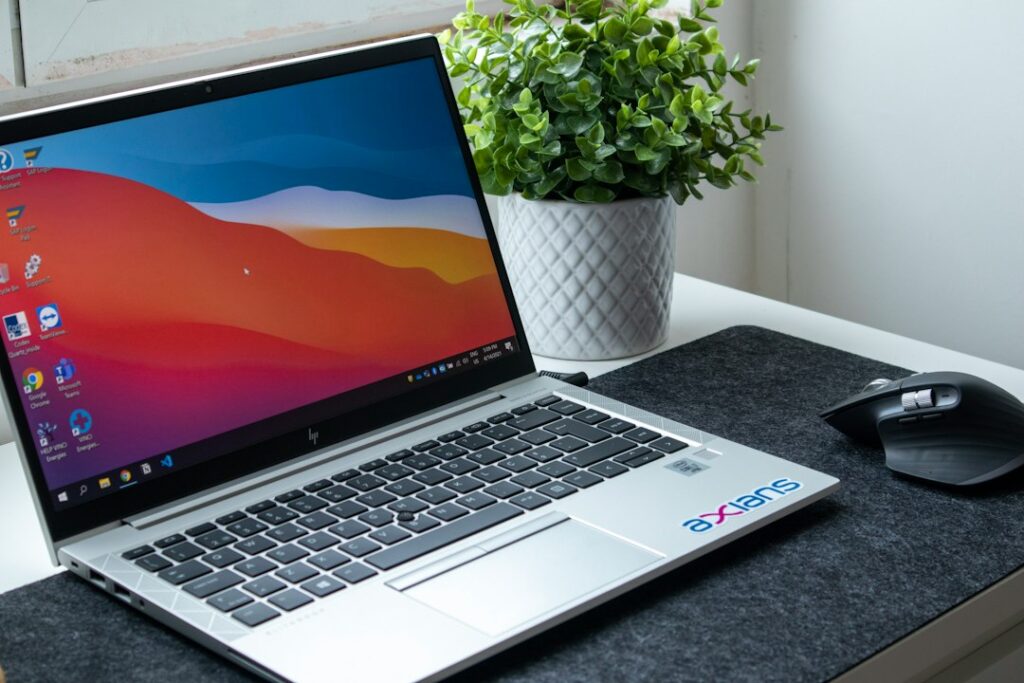
Featured photograph by Nubelson Fernandes on Unsplash. Illustrative workspace; check the requirements for your own computer.
Reviewed October 3, 2026.