If reading on a laptop leaves your eyes uncomfortable, the first useful change may be larger text or a break, not another subscription. AI can help you locate settings or reorganize a long document. It cannot diagnose the reason for eye pain, blurred vision, or headaches from a chat or ordinary webcam.
For readers managing work, family messages, and online learning, the aim is a screen routine that is easier to sustain. There is no universal setting for everyone over 40 or 50. Start with what is uncomfortable in your actual room and task.
Separate everyday comfort from eye care
The National Eye Institute notes that prolonged screen use can contribute to dry eye and recommends limiting screen time and taking breaks. That does not mean every headache or visual change comes from a screen. An eye professional can assess symptoms and whether your vision correction or treatment needs attention.
Get prompt professional advice for recurring symptoms, symptoms that interfere with everyday activities, or a change that persists despite ordinary adjustments. Do not let a chatbot’s reassuring explanation postpone care.
Some changes need immediate attention. NEI warns that a sudden shower of new floaters, flashes, or a dark curtain or shadow across vision can signal a retinal tear or detachment. Contact an eye doctor or emergency service right away. These are not problems to troubleshoot by changing display brightness.
Make one screen easier to read
Pick the device you use most and a familiar task, such as reading email. Change one thing at a time so you can tell what helps:
- Increase text size or browser zoom until you can read comfortably without repeatedly leaning forward.
- Move the screen or adjust a curtain if a lamp or window produces distracting glare.
- Choose brightness that feels comfortable in the room; maximum brightness is not a health setting.
- Try an uncluttered reading view or a different contrast theme. Keep the one you find easier, rather than assuming dark mode suits everyone.
- Use text-to-speech for suitable material if listening offers a welcome alternative.
AI can provide a starting point for finding these controls. Tell it the operating system, browser, and version if known. Ask for instructions from the manufacturer’s current help page. If the named menu does not exist, stop and check official support rather than installing a suggested extension.
You do not need to share a screenshot of private email or a medical record to get help finding a zoom setting. Describe the interface or use a blank sample document.
Build breaks into the task
A timer or calendar reminder can interrupt a long stretch of close-up work. It does not need AI. Pick a reminder you will notice without creating another stream of alerts, and use the pause to look away from the screen and change activity.
If a meeting prevents a planned break, take a practical pause afterward rather than treating the schedule as a failed health target. A reminder’s job is to make a habit easier. It cannot measure whether your eyes have recovered or determine a safe maximum number of screen hours for you.
AI is more useful for arranging the work around the pause. For example: “Turn this list of tasks into a morning plan that alternates screen reading with my existing offline tasks. Preserve deadlines. Do not invent health benefits or appointments.” Review the result against what your day actually allows.
Question claims about blue light and eye tracking
The American Academy of Ophthalmology states that scientific evidence does not show blue light from digital devices damages the eyes. That makes claims that an AI filter prevents retinal damage a poor reason to buy a product. A warmer display may feel preferable, but comfort and proven disease prevention are different claims.
Be equally careful with software that claims to diagnose eye strain from a camera. Ask what it measures, whether the exact feature has relevant clinical evidence, and what happens when glasses, lighting, or camera position affect the image. A detected blink or estimated gaze direction is not a comprehensive eye examination.
Do not follow chatbot-prescribed eye exercises, supplements, or medication changes for unexplained symptoms. Ask your eye professional about treatment questions, including any drops you are considering.
Keep a short note if symptoms continue
Record the task, approximate duration, symptoms, and whether they also happen away from screens. Note which ordinary display changes you tried. The purpose is to explain the problem, not prove a diagnosis through a home experiment.
AI can turn those observations into a concise appointment question: “These symptoms occur during these tasks; what should we assess?” Check that the summary preserves uncertainty. Our symptom diary article explains that distinction in more detail.
Start with one reversible adjustment and a useful pause. If technology reduces the effort of reading or organizing your day, it has done something worthwhile without pretending to be an eye-care service.
Reviewed September 28, 2026. Written and revised with AI assistance; this article has not been individually reviewed by a healthcare professional. General information only, not medical advice. See our disclaimer.
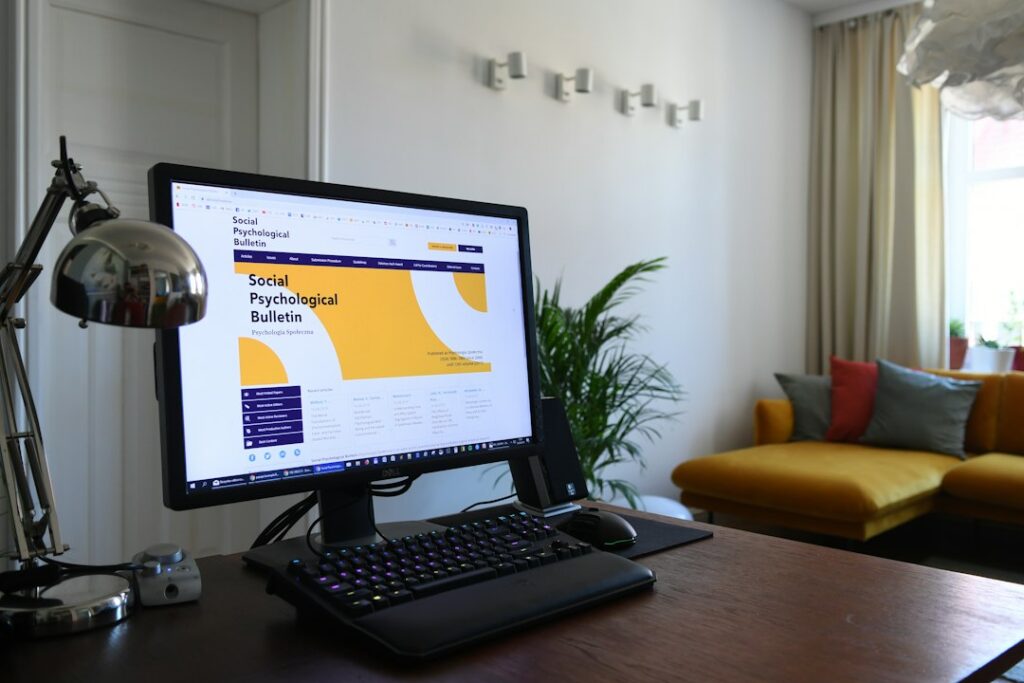
Photo: Michał Parzuchowski on Unsplash. An ordinary workspace illustrates screen adjustments; it is not a prescribed ergonomic setup.