AI audio tools can reduce some background noise or help create an effect for a livestream. They can also make a voice sound unnatural, introduce distracting changes, or complicate an otherwise workable setup. The useful goal is clear, dependable sound, not the largest possible collection of filters.
Whether you stream games yourself or offer paid setup help, begin with a short recorded test. Better audio may improve the experience, but it does not guarantee more subscribers, sponsorships, or revenue. Judge the result by what listeners can actually hear.
Choose the problem before choosing the tool
Identify the main issue: steady fan noise, inconsistent speech volume, game audio covering commentary, an echo, or an unwanted delay. These problems do not all need the same treatment. Moving a microphone or lowering a game source may help more than another AI feature.
Not every audio filter is AI. Gain changes level; a limiter controls peaks. RNNoise combines signal processing with a neural network for real-time noise suppression. Voice-changing tools, generated music, and triggered sound effects are separate functions, with different practical and rights questions.
Write down one improvement to test first, such as reducing fan noise while keeping quiet speech understandable. Change one part of the setup at a time so you can tell which change helped.
Set the source level before adding processing
Check the microphone connection, position, and input selection. Reduce avoidable noise in the room and use headphones during monitoring to help prevent the loudspeaker output returning through the microphone. Speak at normal volume, then try the louder delivery you might use during an exciting moment.
OBS’s gain documentation recommends generally adjusting gain at the source before it reaches OBS. Set the microphone or interface according to its instructions, and watch for clipping. Leave headroom: some margin between the loudest expected peaks and the point where the signal overloads.
Aim for a usable level, not a meter that stays at its maximum. Do not rely on a later filter to compensate for an overloaded input. Check game, voice-chat, alert, and microphone sources separately before balancing them together.
Try noise suppression gently
OBS’s Noise Suppression documentation describes reducing mild background noise, such as fan noise, while noting limits in very noisy rooms. Available methods include RNNoise and Speex; NVIDIA Noise Removal requires its supporting Broadcast SDK. Confirm compatibility with your own system before choosing a method.
Add the filter to the relevant source and compare the result with it disabled. Listen during quiet words, pauses, laughter, and changes in volume. Check whether consonants disappear, the voice sounds watery, or background sound rises and falls distractingly.
Stronger suppression is not automatically better. OBS specifically notes that aggressive Speex suppression can distort other sounds, including the voice. If processing damages the commentary, reduce it or remove it and address the source of the noise.
Balance the mix and control peaks
Use the OBS Audio Mixer Guide to understand the meters and source controls. Listen to the combined output, because similar meter readings do not necessarily mean that game sound and speech seem equally loud to a viewer.
Keep commentary understandable during busy gameplay and alerts. Check a typical quiet passage as well as an exciting moment; a mix that works only during calm speech is not ready for a tournament.
If you use an OBS limiter, its official documentation recommends placing it last in the filter chain. Set it deliberately and test the result rather than copying unexplained numbers. A limiter can help control output peaks, but it is not a substitute for balancing the sources.
Record a realistic sample
Make a short rehearsal using the actual game, voice chat, camera, and effects you intend to use. Include ordinary speech, a louder reaction, keyboard activity, a pause, and a transition. Keep listening volume comfortable.
- Compare a version without the new processing with a processed version at similar playback loudness.
- Listen for missing words, distortion, echo, abrupt cuts, and unwanted changes in background sound.
- Check that speech and visible mouth movements remain aligned. A visible clap can provide a simple timing reference.
- Watch for increased processing load, dropouts, or delay while the game and stream software run together.
- Check the delivered recording or test stream, not only the local monitor feed.
If the timing is wrong, investigate the complete audio and video path using the relevant software documentation. Avoid repeatedly adding delay adjustments without measuring the problem. Save the settings that passed the rehearsal and keep a simple way to bypass a troublesome effect.
Add effects and paid services carefully
Use alerts and effects sparingly so they do not hide commentary or mislead viewers about events in the game. Check permission for music, game audio, sound packs, and generated material. Changing a sound with AI does not establish that you may sell or broadcast it, and imitating a real person’s voice requires particular care and permission.
If you offer paid setup support, define the actual work: source configuration, a documented test, agreed corrections, and a handover. Record preparation and troubleshooting time when setting a price. Do not promise a percentage increase in engagement or treat a change in audience numbers as proof that an audio filter caused it.
For camera tracking and the wider broadcast, see planning an AI-assisted sports livestream. Keep the audio service focused on a result you can demonstrate and explain.
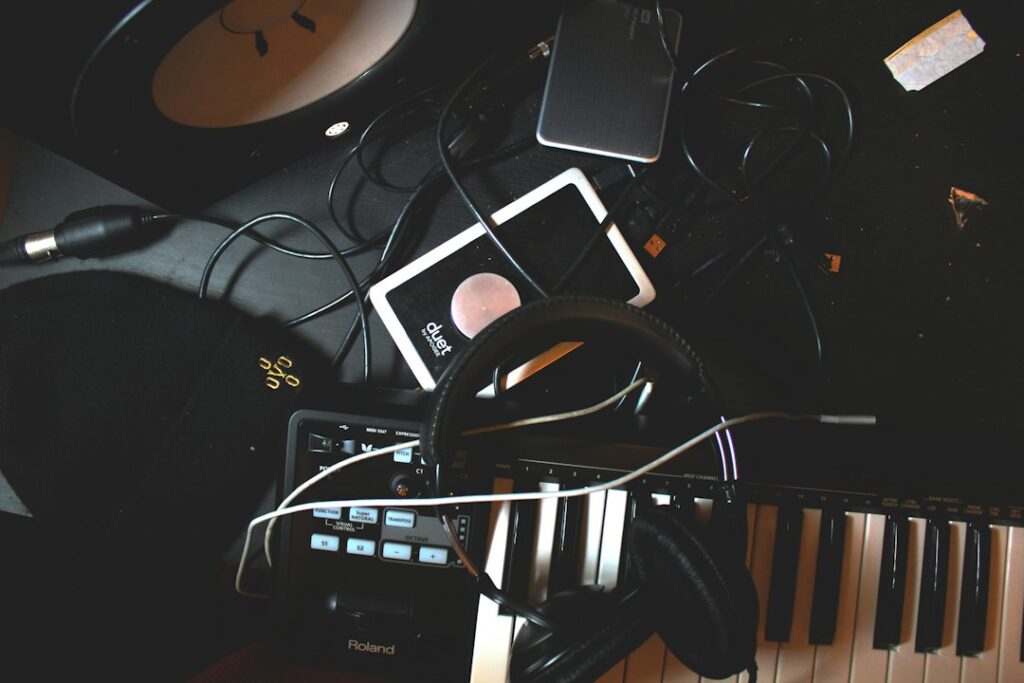
Featured image: James Stamler on Unsplash. Illustrative photograph.
Updated September 25, 2026. Prepared with AI assistance. Examples are illustrative. This article is for information and education, not professional advice.