A stock photograph may suit your newsletter or presentation except for one detail: the crop is awkward, the background is distracting or there is no room for a heading. AI editing can sometimes help. Begin with a clear change you need, rather than assuming every photograph improves when it is heavily transformed.
This workflow is for adapting an image for your own project. It does not establish permission to resell someone else’s photograph or submit a modified version as your own stock contribution.
Choose the image and check its permissions
Start at the original photo library, not an image copied from a search-results preview. Keep the asset page, photographer’s name, license information and download date with the file. A watermark on a preview is not an invitation to remove it with AI.
Adobe Stock’s licensing guidance, for example, permits editing non-editorial assets within its terms, but places stricter limits on editorial-only images. The permitted use of a specific asset matters more than the general phrase “stock photo.”
Free images also have terms. The Unsplash license allows many uses and modifications, while its terms explain separate issues involving recognizable people, brands and artwork. A copyright license does not automatically settle every right associated with what appears in a photograph.
Check the editing service’s current terms too, including whether you may upload that material and use the result for your intended purpose. If the permission is unclear, choose another image or resolve the question with the rights holder. A chatbot’s confident interpretation is not permission.
Write a brief before making changes
State where the image will appear, its required shape and what must remain accurate. A wide website banner and a square slide thumbnail need different compositions. Identify the subject that must stay visible and any space needed for text.
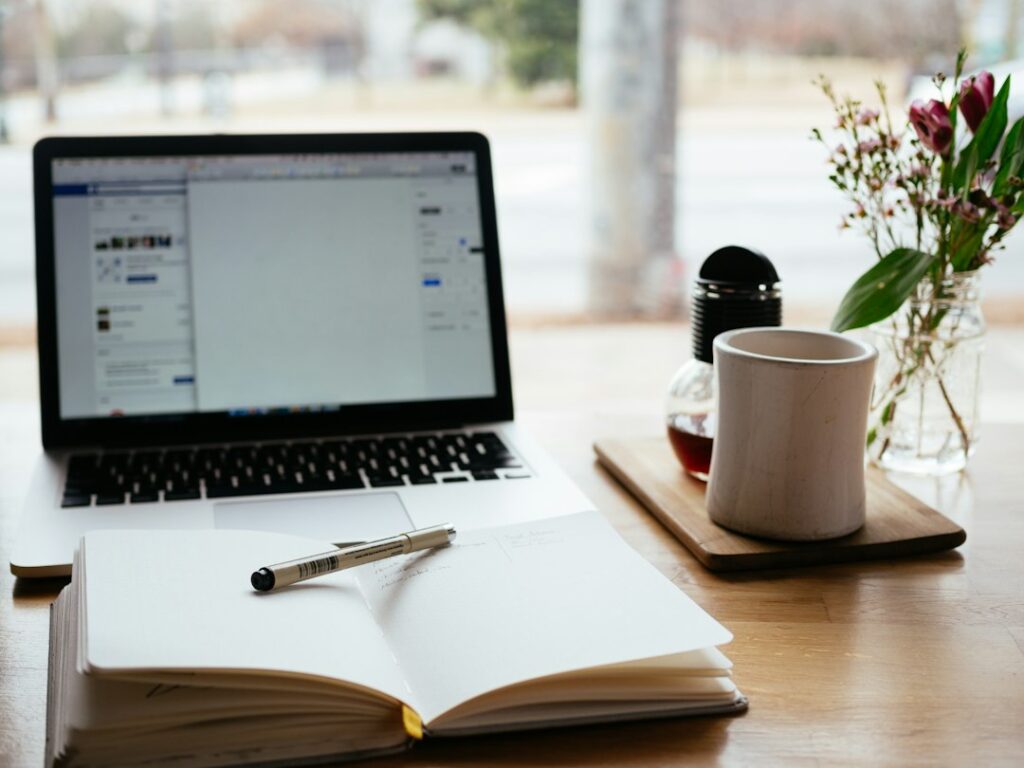
For a fictional community newsletter, imagine a licensed photograph of a cup beside a notebook. The editor wants a quiet area for a heading. The cup, notebook and their shadows should remain believable, and the photograph should not suggest a real event the group held.
Try a normal crop, modest exposure adjustment or different stock photograph first. Those may solve the problem with less work. Use generative editing when it provides a specific benefit that ordinary adjustments cannot conveniently provide.
Make one limited edit on a working copy
Preserve the downloaded original and work on a duplicate. If your editor supports layers or an editable project file, retain those so you can reverse a change. Make one adjustment at a time and compare it with the original.
Adobe Firefly’s Generative Fill instructions describe selecting an area and using a prompt to add or replace content. That is one example of a targeted editing workflow. Available controls, models and credit costs can change, so use the documentation for the tool you actually have.
For the fictional newsletter, a bounded request might be: “Replace only the selected background area with a plain, softly lit wall matching the existing light. Preserve the cup, notebook and table. Add no people, words or logos.” Select the area carefully; a written request alone does not guarantee that other details remain unchanged.
Keep two or three plausible results and compare them. Do not accept a result simply because it looks dramatic. If the tool repeatedly alters the subject or invents distracting objects, return to the original or choose a more suitable photograph.
Inspect the entire result
Check at normal viewing size, then at 100 percent or larger. Compare both the edited area and parts that were supposed to remain untouched. Watch for broken edges, inconsistent reflections, repeated textures, floating objects and shadows that no longer fit the light.
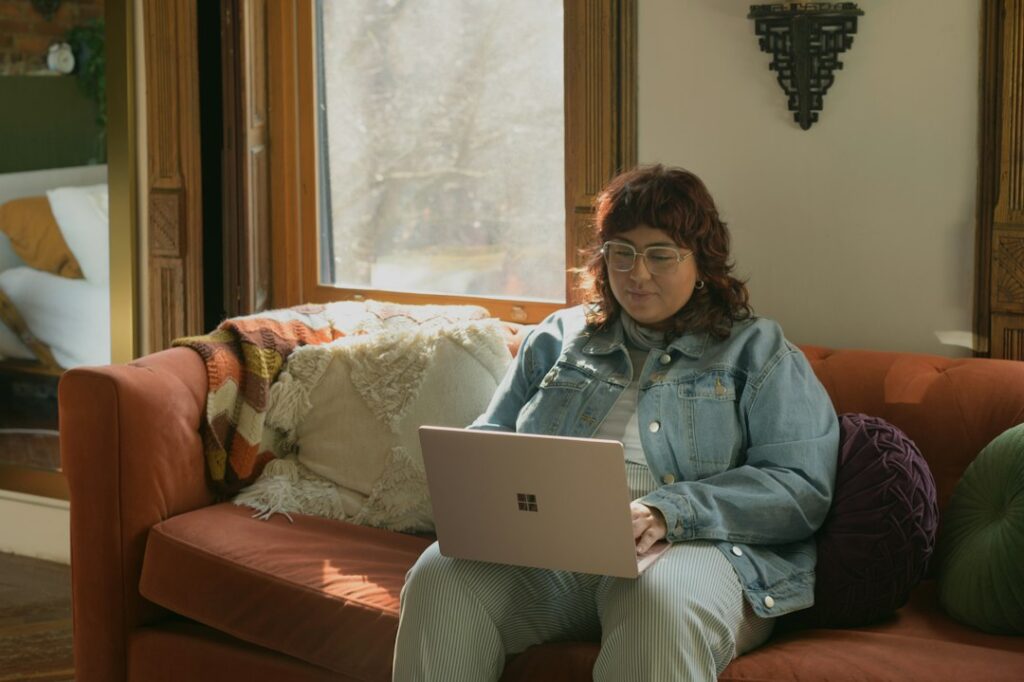
If people appear, check complete heads and faces, hands, limbs and how each body connects. Examine background figures too. Read every visible word and number; generated labels or signs can look convincing while being meaningless.
Keep factual uses especially clear. A product image should not gain features the product lacks. A stock person should not be presented as your customer. A generated addition to a place should not be treated as evidence that the place actually looks that way.
A technically tidy image can still communicate something false. Ask what a reasonable viewer would think it shows. Where a substantial generated change could mislead them, explain that the image is illustrative or altered, or use a more suitable original.
Check the finished layout and keep a record
Export a copy at the dimensions your publishing system needs. Preview the actual page or slide, including a narrow screen where relevant. A theme’s automatic crop can cut off a face or important object even when the uploaded file is complete. Move the crop or choose another image if the subject does not fit.
Add concise alternative text describing the final image’s relevant content. Include the credit required by its license. Keep the original, editable version, final export and a short note of changes together with the source and permission record.
The useful result is an image that fits your message, looks coherent and is appropriate to use. AI has helped when it removes a genuine layout obstacle without creating a new accuracy or rights problem.
Updated September 25, 2026. Prepared with AI assistance and checked against the linked sources. Fictional examples illustrate a workflow and are not reports of product testing. This article provides general information, not personalized professional advice. See our disclaimer.
Featured photograph: Héctor Martínez / Unsplash. Stock photograph for illustration, not a product test or a project completed by this site.